Check the status and required access first, then the phone’s background and battery settings. Quiet Hours or a recent answer can keep Renura silent even when it is working. If Android has stopped it, check the access and battery settings.
Open Renura’s Settings and read the status. Waiting for a pause will not tell you what is wrong.
The current Settings view reports required access and whether the phone allows the relevant background operation. Accessibility, Usage Access and permission to display over other apps support different parts of protection; allowing one does not automatically allow the others.
Renura’s support page describes checking protection status and Android Settings. Phone makers can place battery controls in different menus, so follow the setting exposed on the actual device.
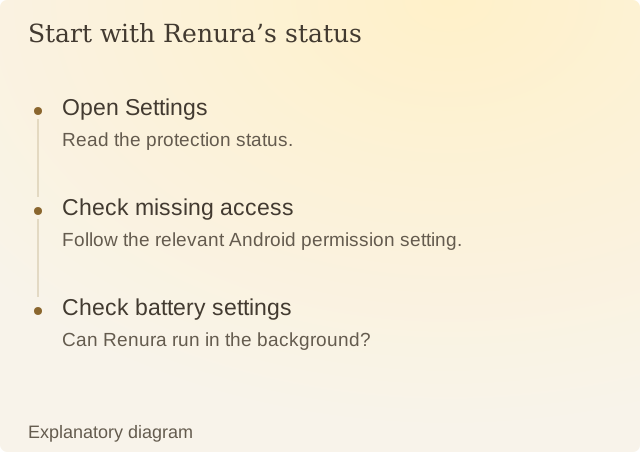
Read the diagram
| Step | Question or meaning |
|---|---|
| Open Settings | Read the protection status. |
| Check missing access | Follow the relevant Android permission setting. |
| Check battery settings | Can Renura run in the background? |
A missing service differs from a deliberate pause. The first means the intended protection cannot operate normally; the second follows a control you selected. Quiet Hours and a cooldown can also keep prompts silent without indicating a broken service.
After changing access, return to Renura and review the status again. Record the exact status text, phone model, Android version and app version if the problem persists. They help support understand what stopped working and which settings to check.
You do not need to send a private activity history to report that status. Describe what stopped, when it happened and which access states are shown.
Sources
Renura: SupportRenura’s support guide. Android menus vary by phone.