Enable Pause all interruptions under Quiet Hours, then set From and Until. The schedule follows your phone’s local hour and can cross midnight. Use the temporary protection pause to stop sensing as well.
Choose the hours you want to keep quiet. Quiet Hours is useful when the same period should remain free of Renura’s interruptions each day.
Open Settings, then Quiet Hours. Turn on Pause all interruptions and set From and Until. A window from 23:00 to 07:00 includes the late evening and early morning; it ends when the local hour reaches 07:00.
Renura stays quiet from the starting hour until the ending hour. If you set the same hour for both, Renura treats the whole day as quiet. That detail matters when checking why no check-in appears.
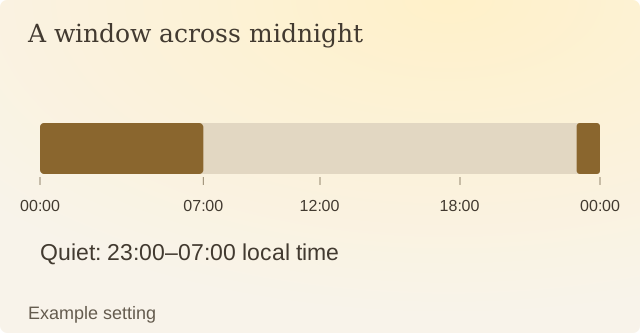
Read the diagram
| Local hour | Interruption state |
|---|---|
| 23:00 through 06:59 | Quiet |
| 07:00 through 22:59 | Normal operating conditions |
The app guide explains the pause controls. Quiet Hours holds interruptions. To stop sensing and check-ins together for a period, use the temporary protection pause instead.
Check the window after changing time zones or adjusting the phone clock. The schedule follows local device time, which may differ from the schedule you had in mind when setting it elsewhere.
To check an unexpected quiet period, compare the phone’s current local hour with From and Until. Equal values silence interruptions for the whole day.
Sources
Renura: How the pause worksRenura’s guide. App controls checked on 9 October 2026.