In Settings under Protection, choose 15 minutes, 30 minutes or 1 hour. The pause stops sensing and check-ins together. Resume now ends it early; manually turning protection off remains a separate choice.
Pick a duration. Renura resumes when the time is up, so you do not have to remember to switch it back on.
The current Protection section provides 15-minute, 30-minute and one-hour options when protection is enabled. It displays the pause end time and offers Resume now while paused. Android access remains enabled, so the timed pause can expire without another permission setup.
The timed protection pause stops sensing and check-ins for the selected interval. Reflection cannot add activity from the time when sensing was paused.
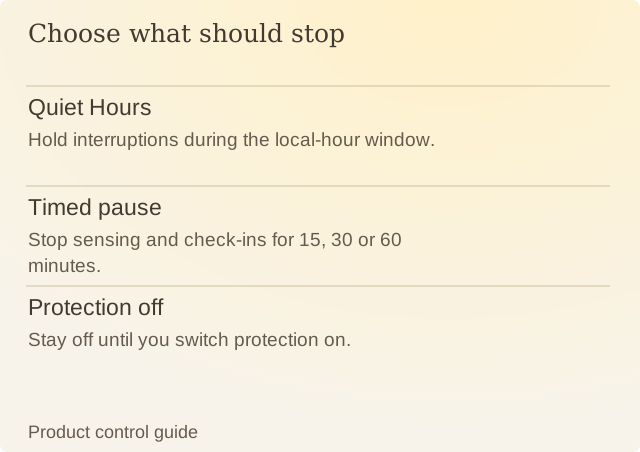
Read the diagram
| Item | Question or meaning |
|---|---|
| Quiet Hours | Hold interruptions during the local-hour window. |
| Timed pause | Stop sensing and check-ins for 15, 30 or 60 minutes. |
| Protection off | Stay off until you switch protection on. |
Turning Protection enabled off is different. That manual switch remains off until you change it; expiry of an earlier pause does not override the manual choice.
Imagine a fictional half-hour work task in a selected app. Choosing 30 minutes creates a matching break. Finishing early and choosing Resume now resumes Renura, with your other settings still in place. Quiet Hours still applies. Resuming does not make a question appear straight away.
The homepage’s pause has another role: it stops ambient website motion. It cannot change the Android app’s protection state. Use the in-app control to pause Renura on your phone.
Sources
Renura: How the pause worksRenura’s guide. App controls checked on 9 October 2026.