In Settings, open Watched Apps and choose Edit to select the apps where you want Renura to offer pauses. Shopping Guard has a separate shopping-app list; check both if you want to remove an app entirely.
You decide where Renura works. Open Settings, find Watched Apps and choose Edit. The list shows installed apps you can open from your phone’s launcher.
Select an app if you want Renura to notice scrolling, tapping and repeated checking there. Remove it if you want that app left out. A social app might be useful for work as well as browsing, so choose based on where you want the option of a pause.
Shopping Guard has its own list and on/off control. Removing a store from Watched Apps can leave it selected in Shopping Guard. To exclude it entirely, check both lists.
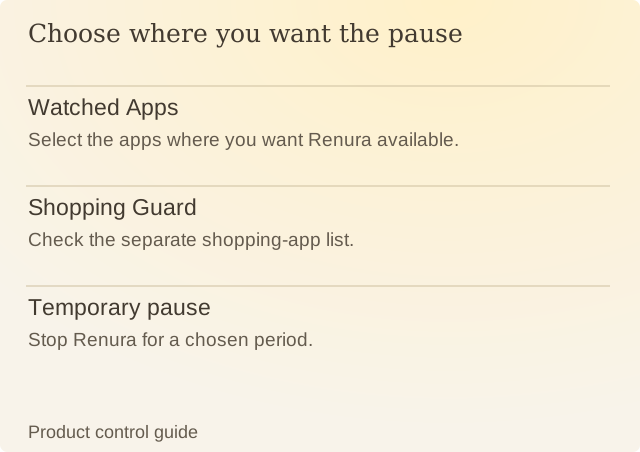
Read the diagram
| Item | Question or meaning |
|---|---|
| Watched Apps | Select the apps where you want Renura available. |
| Shopping Guard | Check the separate shopping-app list. |
| Temporary pause | Stop Renura for a chosen period. |
The app guide also explains how a pause appears. After editing, check which apps remain selected. The number alone will not tell you which apps are included.
If you only need a break from Renura for one work session, use a temporary pause. It ends after the duration you choose. Removing an app from both lists keeps it excluded until you add it again.
You can revise either list later. Your choices determine where Renura can offer a pause, not how long you are allowed to use an app.
Sources
Renura: How the pause worksRenura’s guide. App controls checked on 9 October 2026.