Often, if the app provides separate notification categories. Android lets you manage those categories, but the separation available depends on the app and phone.
Android’s channel documentation describes per-category controls for visibility and interruption. Apps define the categories; phone makers may change how Settings presents them.
Open the app’s notification settings. Read the category names. A long press on a received notification can help locate its settings on many phones. Read the actual category shown instead of assuming “General” means only promotions.
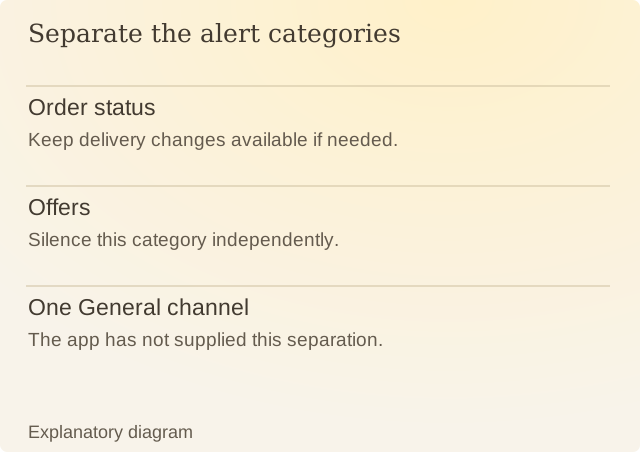
Read the diagram
| Item | Question or meaning |
|---|---|
| Order status | Keep delivery changes available if needed. |
| Offers | Silence this category independently. |
| One General channel | The app has not supplied this separation. |
Consider a fictional delivery app with Order status, Offers and Recommendations. If the app assigns these channels correctly, you can silence Offers while keeping order updates. If all three arrive under General, Android cannot create the missing distinction for you.
Review sound and visual presentation separately where those controls exist. An update you want in the notification list may not need a sound each time. Silencing a sound differs from disabling the category.
After changing a category, check the next relevant alert. You need to confirm which kind of alert the setting affected, rather than assuming a quiet period proves success. App updates can also alter categories, so revisit them when the type of alert changes.
Sources
Android: Create and manage notification channelsAndroid documentation. Phone makers can change the Settings interface.