Check the seller, final amount and payment method before confirming. A saved card or digital wallet can shorten checkout; you still need to review what you are agreeing to pay.
Check the payment details. Read the seller and final amount shown at checkout.
Google Pay’s checkout guide describes choosing a saved payment method, entering a shipping address if asked, and confirming the order. Other cards and wallets use different steps, so read the confirmation shown by the service you are using.
A saved card saves typing. It still leaves the order to review before you confirm.
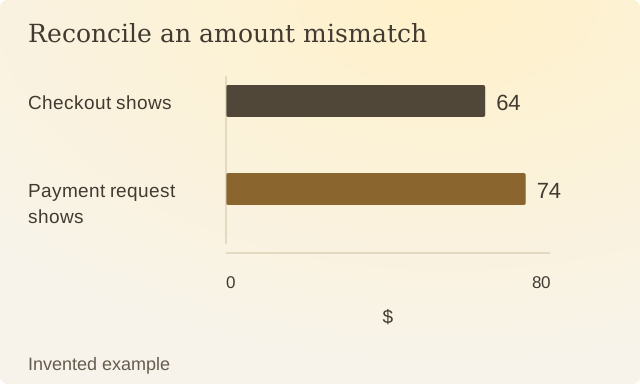
Read the values
| Item | Value |
|---|---|
| Checkout shows | $64 |
| Payment request shows | $74 |
In an invented purchase, checkout shows $64 while the payment confirmation shows $74. Check why the amounts differ before approving the payment. The amount may reflect a changed basket, another charge or an error; the mismatch needs an explanation.
A correct payment destination does not settle whether the item fits. Check the model, seller terms and whether you want the item before reaching payment.
Renura does not inspect a bank balance or certify a payment. It offers a pause in apps you select. Use the payment service’s own current details to review the transaction, and keep its confirmation if the purchase goes ahead.
Sources
Google Pay: Pay on an app or websiteOfficial checkout guide. Payment options and confirmation steps vary by service.
Renura: How the pause worksRenura’s guide. App controls checked on 9 October 2026.